Performance
Work with instruments and performances
Choose an instrument, inspect its playable layout, and turn musical material into an interactive performance.
Goal
Instruments describe how musical tones are laid out and played. Performances add timed events, gestures, voices, and visual behavior.
Interface landmarks
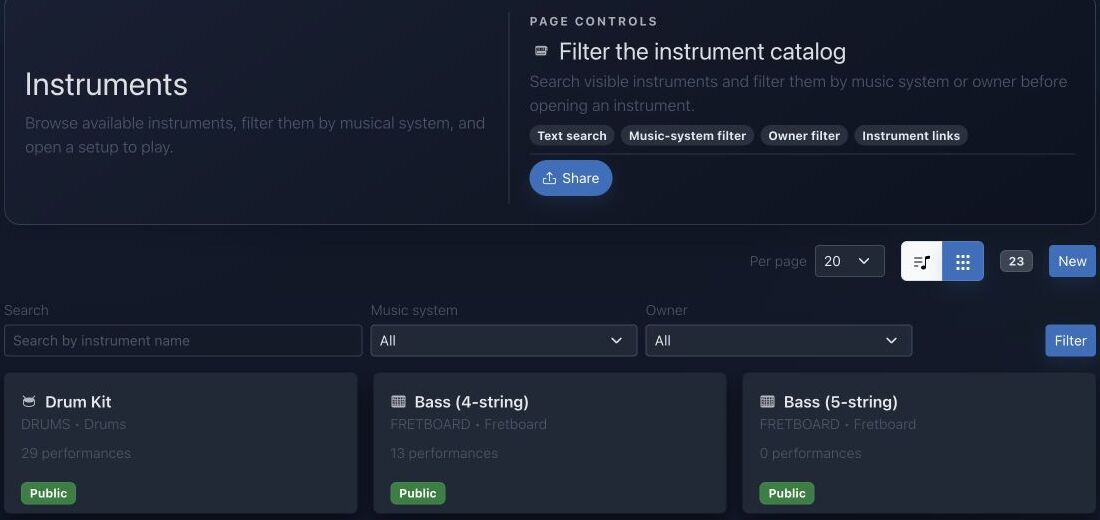
- Search finds instrument names and families.
- Music system limits the catalog to a tuning framework.
- Owner filters distinguish public instruments from personal or team resources.
- Cards expose performance counts and lead into playable instrument pages.
Step-by-step workflow
- Open the instrument catalog and select the instrument or layout you want to practice.
- Inspect its range, rows, fingering catalog, performer, and available sound behavior.
- Open an existing performance or create one from the selected instrument.
- Add musical content, verify playback, and use the visual performer to study timing and gesture.
Practice tips
- Confirm the instrument tuning before interpreting fret or row positions.
- Practice one voice slowly before combining several performer layers.
Worked example
Example: map one scale onto guitar
Open Guitar, confirm standard tuning, choose C major, and display every available position. Pick one compact area of the fretboard, play the scale slowly, then open a compatible performance to study timing and fingering.
Canonical project documentation
This reference is generated directly from repository Markdown; it is not duplicated fixture copy.
Source: Documentation/Instrument.md
Overview
The Instrument system is composed of four main components:
InstrumentEntity: The Doctrine ORM entity that maps to theinstrumenttable in the database.InstrumentDtoDTO: A read-only Data Transfer Object used for exposing and manipulating instrument data through the API.InstrumentProvider: A state provider for API Platform that handles the transformation ofInstrumententities intoInstrumentDtoDTOs.InstrumentProcessor: A state processor for API Platform that handles the persistence ofInstrumentDtodata to the database.
Instrument view range controls
Keyboard and fretboard instruments now expose range controls inside the instrument view (assets/instrument/controllers/instrumentView/controller.js). Those cards let you pick a minimum/maximum octave (for KEYBOARD) or fret number (for FRETBOARD), and the controller filters the rows before rendering the keyboard/fretboard layout or recomputing template matches. Every range change dispatches an instrument-view:range-change event with the selected bounds plus the filtered row IDs.
assets/pianoroll/stimulus/PianoRollControllerAdapter.js listens for that event and keeps the Pianoroll lanes in sync: it stores the unfiltered rows, applies the same min/max filters on the instrument rows payload, and re-emits the filtered set so the lane gutter also only shows the notes/frets that fall within the chosen window. This keeps the piano roll and instrument view aligned when you tighten down a note/fret range.
Source: Documentation/Performer.md
Overview
The Performer system is composed of two main components:
PerformerEntity: The Doctrine ORM entity that maps to theperformertable in the database.PerformerOutputDTO: A read-only Data Transfer Object used for exposing performer data through the API.
There is no dedicated StateProvider or Processor for Performer.
Source: Documentation/Performance.md
Overview
A Performance is JolyMusic's timed, playable projection of musical material onto an Instrument and optionally a Performer. It combines:
- an instrument layout;
- performer actors, articulations, and gestures;
- one or more ordered voices;
- timed performer events;
- global tempo, meter, and key events;
- linked Harmonies;
- metadata and editor/runtime configuration;
- owner, team, and public visibility.
It is not merely a MIDI note list. The model preserves enough information to render an instrument-specific workspace, reconstruct source provenance, activate performer elements, produce compact playback data, and link events to harmony context.
State Endpoint
API Platform exposes:
GET /api/performances/{id}/state
GET /api/performances/{id}/state.json
The web controller also exposes:
GET /{_locale}/performances/{id}/state.json
route: performance_state
PerformanceStateProvider requires PerformanceVoter::VIEW. It accepts:
tick=<non-negative integer>
runtime=workspace
lean=true
runtime=workspace or a truthy lean flag selects the lean runtime representation.
Full State
PerformanceStateOutput includes:
id, name, targetDescription, ppq
metadata, config, isPublic, ownerId, teamIds
currentTick
target, performer, performerState, performerCatalog
elements, activeElements, notes
globalEvents, harmonies
executionGraph, scorePreview
Default normalized config is:
{
  "zoom": 1.0,
  "bpm": 120,
  "loop": false,
  "loopStartBar": 1,
  "loopEndBar": 8,
  "ppq": 960,
  "activeHarmonyId": null,
  "globalKeyId": null,
  "timeSignature": "4/4",
  "beatsPerBar": 4,
  "beatUnit": 4
}
Stored config overlays these defaults. Consumers should use the normalized output instead of reimplementing defaults.
Compact Runtime
The compact format identifies itself as:
performance-runtime-v1It carries a noteSchema describing positional note rows and a compact global-event schema. Current note keys are:
id, t, d, r, m, v, el, art, gest, voice,
fret, str, hand, lane, xml, measure, p,
sel, prev, sv, ss, sm, x, y, z
The schema array is part of the payload specifically so consumers do not have to hard-code positional meaning without a version signal.
For persisted Performances, runtime events may be read through PerformanceRuntimeEventReader without hydrating the entire event graph. For transient objects, the builder derives compact rows from the entity collections.
PerformanceRuntimeResponseFactory adds cache behavior appropriate to public versus protected state. Tests cover the response contract; clients should respect validators and cache headers rather than assuming every state response is permanently private or permanently cacheable.
Authorization
PerformanceVoter defines:
PERFORMANCE_VIEW
PERFORMANCE_EDIT
Rules:
- anyone can view a public Performance;
- the owner can view it;
- any member of a linked team can view it;
- owner, team
OWNER, or teamADMINcan edit; - edits also require a user allowed to write paid features;
- application administrators and super administrators satisfy the paid-write check.
Public visibility never implies edit permission.
Troubleshooting
State returns 403
The Performance is neither public, owned, nor shared through a team visible to the requester.
State has no notes
Check whether the request used lean runtime, whether persisted runtime rows exist, and whether performer events have valid timing and instrument rows.
Notes appear but no active elements
Lean runtime intentionally returns an empty activeElements list. Otherwise verify the requested tick against the half-open event interval.
Wrong instrument position
Inspect the event's instrumentRow, source metadata, and the current instrument layout. Imported pitch and physical row resolution are separate.
Harmony context is unexpected
Inspect ordered PerformanceHarmony links, the single lead flag, link config, and global key events.
A team member cannot edit
Ordinary membership grants view only. Team role must be OWNER or ADMIN, and the user must pass paid-feature write access.
Quick troubleshooting
- Positions do not match your instrument: verify string count, tuning, handedness, and music system.
- A performance is unavailable: check that it targets the selected instrument family and visibility.
- Playback exceeds the playable range: review the performance register or transpose it.
Before you finish
- The selected instrument definition matches the physical instrument.
- The musical range is playable without hidden transposition.
- Visual gestures and audible events remain synchronized.
Continue in JolyMusic
Open the related tool and apply this workflow immediately to one simple example.