Interprétation
Utiliser les instruments et les performances
Choisissez un instrument, observez sa disposition jouable et transformez le matériau musical en performance interactive.
Objectif
Les instruments décrivent la disposition et le jeu des notes. Les performances ajoutent événements temporels, gestes, voix et comportements visuels.
Repères dans l’interface
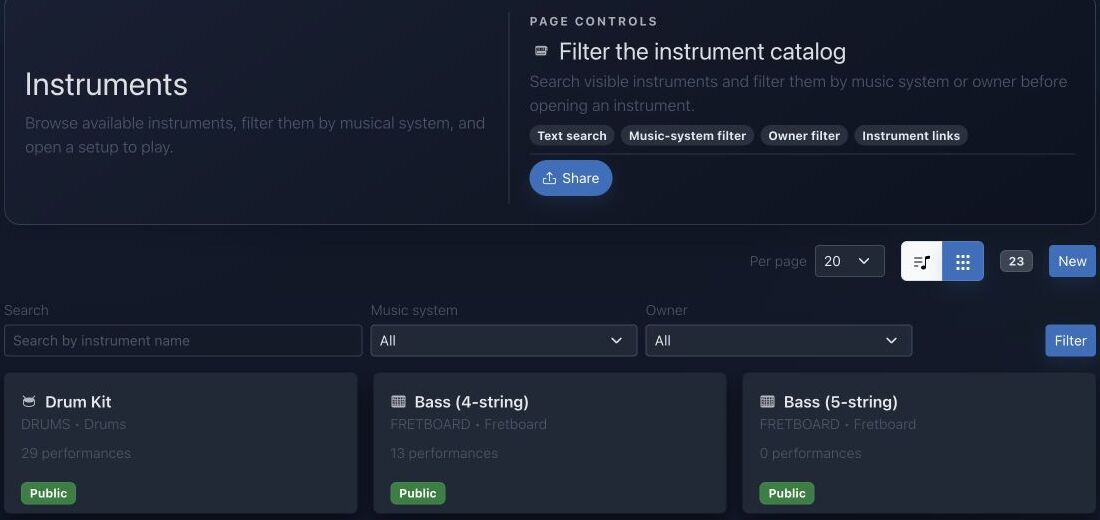
- La recherche trouve les noms et familles d’instruments.
- Le système musical limite le catalogue à un cadre d’accordage.
- Le filtre de propriétaire distingue ressources publiques, personnelles et d’équipe.
- Les cartes affichent le nombre de performances et ouvrent les pages jouables.
Méthode pas à pas
- Ouvrez le catalogue et choisissez l’instrument ou la disposition à travailler.
- Examinez sa tessiture, ses rangées, son catalogue de doigtés, son performer et son comportement sonore.
- Ouvrez une performance existante ou créez-en une depuis l’instrument sélectionné.
- Ajoutez le contenu musical, vérifiez la lecture et utilisez le performer visuel pour étudier rythme et geste.
Conseils de pratique
- Vérifiez l’accordage de l’instrument avant d’interpréter les positions.
- Travaillez lentement une seule voix avant de combiner plusieurs couches.
Exemple guidé
Exemple : placer une gamme sur la guitare
Ouvrez Guitare, vérifiez l’accordage standard, choisissez Do majeur et affichez les positions. Sélectionnez une zone compacte du manche, jouez lentement puis ouvrez une performance compatible pour étudier rythme et doigté.
Documentation projet canonique
Cette référence est générée directement depuis les fichiers Markdown du dépôt ; elle n’est pas dupliquée dans les fixtures.
Source: Documentation/Instrument.md
Overview
The Instrument system is composed of four main components:
InstrumentEntity: The Doctrine ORM entity that maps to theinstrumenttable in the database.InstrumentDtoDTO: A read-only Data Transfer Object used for exposing and manipulating instrument data through the API.InstrumentProvider: A state provider for API Platform that handles the transformation ofInstrumententities intoInstrumentDtoDTOs.InstrumentProcessor: A state processor for API Platform that handles the persistence ofInstrumentDtodata to the database.
Instrument view range controls
Keyboard and fretboard instruments now expose range controls inside the instrument view (assets/instrument/controllers/instrumentView/controller.js). Those cards let you pick a minimum/maximum octave (for KEYBOARD) or fret number (for FRETBOARD), and the controller filters the rows before rendering the keyboard/fretboard layout or recomputing template matches. Every range change dispatches an instrument-view:range-change event with the selected bounds plus the filtered row IDs.
assets/pianoroll/stimulus/PianoRollControllerAdapter.js listens for that event and keeps the Pianoroll lanes in sync: it stores the unfiltered rows, applies the same min/max filters on the instrument rows payload, and re-emits the filtered set so the lane gutter also only shows the notes/frets that fall within the chosen window. This keeps the piano roll and instrument view aligned when you tighten down a note/fret range.
Source: Documentation/Performer.md
Overview
The Performer system is composed of two main components:
PerformerEntity: The Doctrine ORM entity that maps to theperformertable in the database.PerformerOutputDTO: A read-only Data Transfer Object used for exposing performer data through the API.
There is no dedicated StateProvider or Processor for Performer.
Source: Documentation/Performance.md
Overview
A Performance is JolyMusic's timed, playable projection of musical material onto an Instrument and optionally a Performer. It combines:
- an instrument layout;
- performer actors, articulations, and gestures;
- one or more ordered voices;
- timed performer events;
- global tempo, meter, and key events;
- linked Harmonies;
- metadata and editor/runtime configuration;
- owner, team, and public visibility.
It is not merely a MIDI note list. The model preserves enough information to render an instrument-specific workspace, reconstruct source provenance, activate performer elements, produce compact playback data, and link events to harmony context.
State Endpoint
API Platform exposes:
GET /api/performances/{id}/state
GET /api/performances/{id}/state.json
The web controller also exposes:
GET /{_locale}/performances/{id}/state.json
route: performance_state
PerformanceStateProvider requires PerformanceVoter::VIEW. It accepts:
tick=<non-negative integer>
runtime=workspace
lean=true
runtime=workspace or a truthy lean flag selects the lean runtime representation.
Full State
PerformanceStateOutput includes:
id, name, targetDescription, ppq
metadata, config, isPublic, ownerId, teamIds
currentTick
target, performer, performerState, performerCatalog
elements, activeElements, notes
globalEvents, harmonies
executionGraph, scorePreview
Default normalized config is:
{
  "zoom": 1.0,
  "bpm": 120,
  "loop": false,
  "loopStartBar": 1,
  "loopEndBar": 8,
  "ppq": 960,
  "activeHarmonyId": null,
  "globalKeyId": null,
  "timeSignature": "4/4",
  "beatsPerBar": 4,
  "beatUnit": 4
}
Stored config overlays these defaults. Consumers should use the normalized output instead of reimplementing defaults.
Compact Runtime
The compact format identifies itself as:
performance-runtime-v1It carries a noteSchema describing positional note rows and a compact global-event schema. Current note keys are:
id, t, d, r, m, v, el, art, gest, voice,
fret, str, hand, lane, xml, measure, p,
sel, prev, sv, ss, sm, x, y, z
The schema array is part of the payload specifically so consumers do not have to hard-code positional meaning without a version signal.
For persisted Performances, runtime events may be read through PerformanceRuntimeEventReader without hydrating the entire event graph. For transient objects, the builder derives compact rows from the entity collections.
PerformanceRuntimeResponseFactory adds cache behavior appropriate to public versus protected state. Tests cover the response contract; clients should respect validators and cache headers rather than assuming every state response is permanently private or permanently cacheable.
Authorization
PerformanceVoter defines:
PERFORMANCE_VIEW
PERFORMANCE_EDIT
Rules:
- anyone can view a public Performance;
- the owner can view it;
- any member of a linked team can view it;
- owner, team
OWNER, or teamADMINcan edit; - edits also require a user allowed to write paid features;
- application administrators and super administrators satisfy the paid-write check.
Public visibility never implies edit permission.
Troubleshooting
State returns 403
The Performance is neither public, owned, nor shared through a team visible to the requester.
State has no notes
Check whether the request used lean runtime, whether persisted runtime rows exist, and whether performer events have valid timing and instrument rows.
Notes appear but no active elements
Lean runtime intentionally returns an empty activeElements list. Otherwise verify the requested tick against the half-open event interval.
Wrong instrument position
Inspect the event's instrumentRow, source metadata, and the current instrument layout. Imported pitch and physical row resolution are separate.
Harmony context is unexpected
Inspect ordered PerformanceHarmony links, the single lead flag, link config, and global key events.
A team member cannot edit
Ordinary membership grants view only. Team role must be OWNER or ADMIN, and the user must pass paid-feature write access.
Diagnostic rapide
- Positions incorrectes : vérifiez nombre de cordes, accordage, latéralité et système musical.
- Performance indisponible : contrôlez la famille instrumentale ciblée et la visibilité.
- Lecture hors tessiture : révisez le registre de la performance ou transposez-la.
Vérification avant de terminer
- La définition sélectionnée correspond à l’instrument physique.
- La tessiture est jouable sans transposition cachée.
- Gestes visuels et événements audibles restent synchronisés.
Passer à la pratique
Ouvrez l’outil associé et appliquez immédiatement cette méthode à un exemple simple.