Getting started
Start your first JolyMusic session
Set up your profile, choose an instrument, and turn one musical idea into a focused practice session.
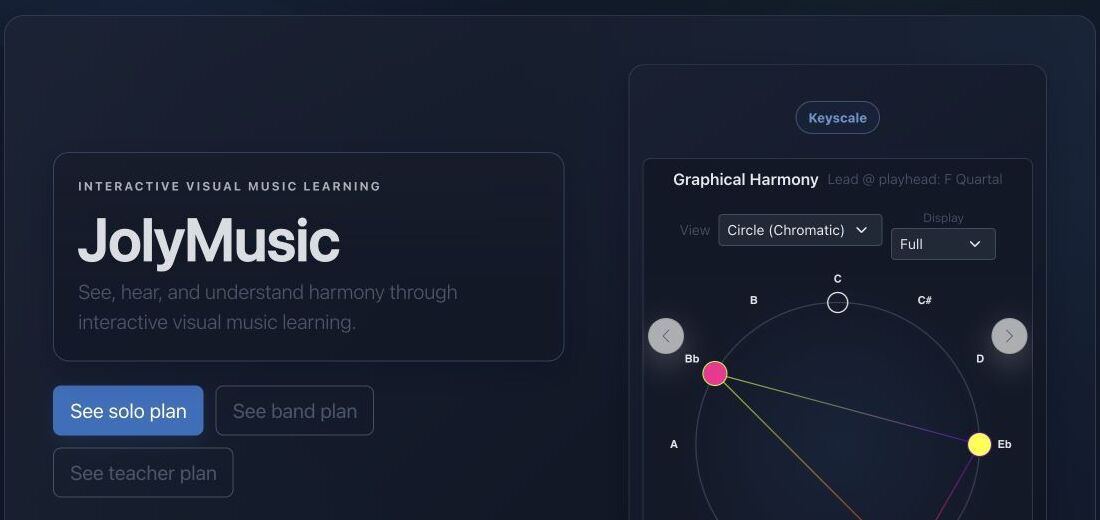
Goal
JolyMusic connects theory, listening, visualization, and performance. Begin with one clear goal instead of opening every tool at once.
Interface landmarks
- The main navigation separates learning, practice, composition, analysis, and exploration.
- The graphical harmony preview turns pitch relationships into a visible shape.
- Plan buttons and account controls show which personal features are available.
Step-by-step workflow
- Open your profile and select your preferred language and instruments.
- Choose one activity: explore a chord, train your ear, build a rhythm, or study a performance.
- Listen first, inspect the visual representation, then reproduce or transform the musical idea.
- Save useful material so you can continue from the same context next time.
Practice tips
- Use headphones or reliable speakers when comparing close pitches.
- Short, repeated sessions are more useful than one unfocused long session.
Worked example
Example: a focused ten-minute session
Choose C major, listen once, sing the seven degrees, display the notes on your favorite instrument, and finish with one ear-training round. Keep the same material throughout so every action reinforces the others.
Canonical project documentation
This reference is generated directly from repository Markdown; it is not duplicated fixture copy.
Source: Documentation/GettingStarted.md
Purpose
JolyMusic is organized around reusable musical context rather than isolated pages. A productive first session establishes four things:
- an authenticated and verified user identity;
- a supported interface locale;
- one or more favorite instruments;
- an audio route that can actually render the chosen material.
The dashboard is an authenticated entry point, not a public landing page. The profile stores durable user preferences. Musical tools may also maintain temporary browser state, so saving a profile preference and saving a tool document are separate operations.
Audio Settings Contract
Both route aliases reach the same controller:
GET|PATCH /{_locale}/profile/jolyengine-settings
route: app_profile_jolyengine_settings

GET|PATCH /{_locale}/profile/audio-settings
route: app_profile_audio_settings
Authentication is required for both methods. GET returns:
{
  "settings": {}
}
PATCH additionally requires SubscriptionAccessVoter::WRITE. The request may be either the settings object itself or:
{
  "settings": {
    "playbackEngine": "tone"
  }
}
Unknown keys are discarded. Accepted top-level families include:
- device selection:
inputDeviceId,outputDeviceId; - main routing:
playbackEngine,soundPresetId; - drum, general instrument, mono, polyphonic, and microtonal defaults;
- Tone.js instrument, volume, and pan;
- oscillator waveform, volume, and pan;
- MIDI input/output, channel, volume, and pan;
- sampler backend, source kind, source URL, volume, and pan.
Engine Normalization
The general playbackEngine accepts:
tone
midi
sampler
frequency
An unsupported general engine falls back to tone.
Family defaults are stricter:
- drum, general instrument, and mono:
tone,sampler, ormidi; - polyphonic and microtonal:
toneormidi.
Unsupported family defaults become null, allowing the consumer to fall back to a broader setting.
Numeric Clamping
The controller clamps rather than rejects these values:
| Setting | Range | | :--- | :--- | | Tone/frequency/sampler volume | -60 to +12 dB | | Tone/frequency/sampler pan | -1 to +1 | | MIDI channel | 1 to 16 | | MIDI volume | 0 to 127 | | MIDI pan | 0 to 127 |
Preset IDs are converted to positive integers or null. frequencyWaveform accepts sine, triangle, square, and sawtooth, falling back to sine. samplerBackend normalizes to standalone or lazy; samplerSourceKind is forced to sfz.
Legacy tonePresetId, samplerPresetId, or presetId can supply soundPresetId when the modern key is absent.
Recommended First Session
Use one stable musical object through the whole session:
- select a locale and favorite instrument;
- open one KeyScale;
- listen through the configured engine;
- sing or identify its degrees;
- map it onto the chosen instrument;
- create or open one short Performance, Harmony, rhythm, or ear-training round;
- save only after verifying playback and visibility.
This sequence avoids changing the theoretical collection, instrument layout, and sound engine at the same time. When something sounds wrong, only one layer needs to be inspected.
Troubleshooting
Dashboard returns 403
The user may be authenticated but not verified. Account verification is checked after authentication.
Profile action redirects to login
The session is not authenticated. Profile reads do not silently create an account or token.
A preference cannot be saved
Write actions are subscription-gated. Confirm SubscriptionAccessVoter::WRITE, then validate CSRF where the route is form-based.
A favorite instrument disappears
The stored ID may no longer be selectable for the user because publication, ownership, or team visibility changed.
Playback is silent
Check, in order:
- browser audio permission and physical output volume;
outputDeviceId;playbackEngine;- required preset or sampler source;
- the tool's assigned JolyEngine receiver;
- whether the current musical object contains playable events.
A malformed PATCH changes unexpected settings
It should not: unknown keys are dropped. If a known key behaves unexpectedly, inspect its normalization branch in ProfileAudioSettingsController::sanitizeAudioSettings().
Quick troubleshooting
- No sound: open Audio settings, select an output engine, and confirm the device volume before changing musical data.
- Too many choices: return to one key, one instrument, and one skill for the current session.
- Work is missing later: sign in before creating personal or team resources.
Before you finish
- Language and favorite instruments are configured.
- Audio playback works at a safe level.
- The session has one written musical objective.
Continue in JolyMusic
Open the related tool and apply this workflow immediately to one simple example.